Back to help

Custom fields guide

Add the information your organisation needs without changing anyone else's workspace.

Custom fields extend supported records with organisation-owned information. This guide explains how to choose a suitable field type, decide exactly where it appears, test it on a real record and manage it safely over time.

Recommended flow

1

Plan the information

Decide what users need to record, who will maintain it and whether a standard Obligary field already covers it.

2

Create and scope

Choose a typed field, add clear help text and select the record areas where users should see it.

3

Test on a record

Open one affected record, enter a realistic value and confirm the validation and placement make sense.

4

Search and govern

Use search, filters or list columns where enabled, then review fields periodically and archive obsolete definitions.
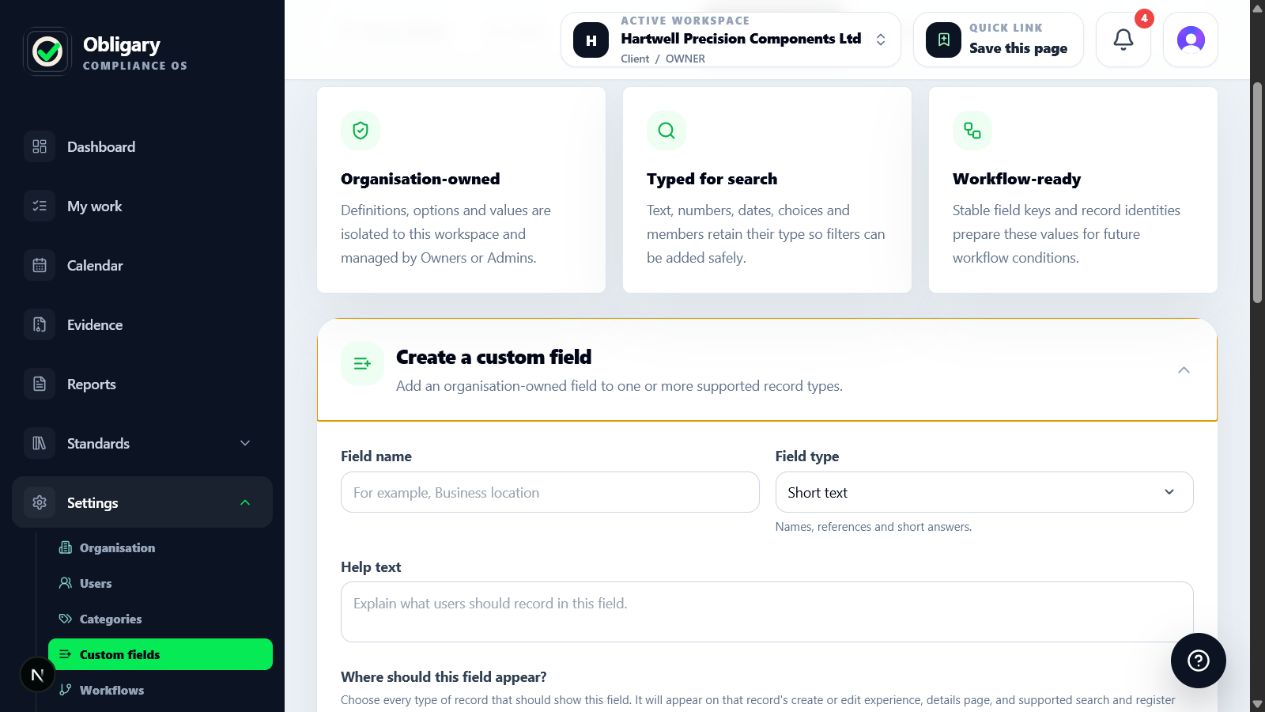
1Chapter 01Start with the Custom fields workspaceOwners and Admins configure definitions under Settings → Custom fields. Definitions and values remain isolated to the active organisation.
Obligary Custom fields settings page showing the organisation-owned guidance and active field definitionsFull size
Use the guidance cards to confirm ownership and behaviour, then create or review definitions below.
  • Check the active workspace before making changes, especially if you manage several client organisations.
  • Use a custom field only when the information does not already have a dedicated core field such as owner, status, due date or category.
  • Give each field one clear purpose. A focused field is easier to validate, search and explain than a catch-all notes box.
  • Agree who owns the definition and who is expected to keep its values current.
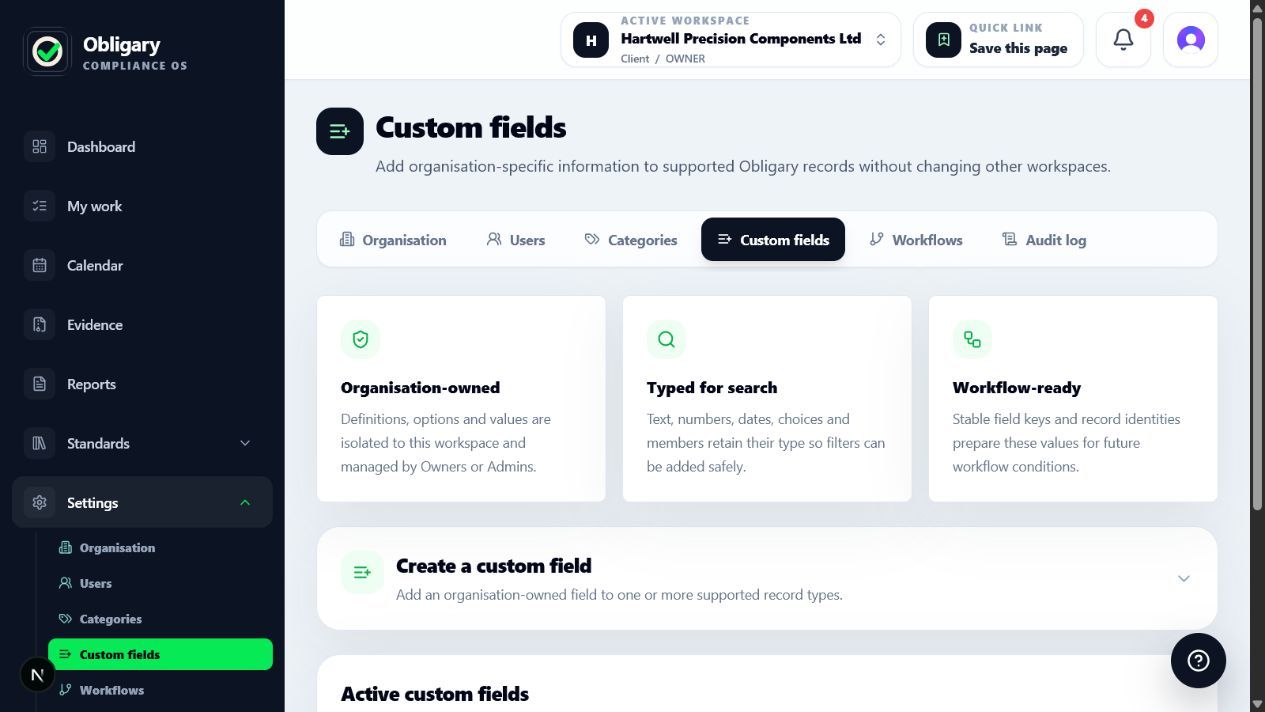
2Chapter 02Create a field step by stepOpen Create a custom field and complete the definition from top to bottom. The choices here control every record that uses the field.
Expanded Create a custom field form with name, type, help text and record scope controlsFull size
The creation panel keeps the field definition, record scopes and register behaviour together.
  1. 1

    Enter a recognisable field name

    Use wording that will make sense on a form and in a list, such as Business location, Contract value or Review outcome.

  2. 2

    Choose the field type

    Pick the most specific type available. Numbers, dates, members and choices retain their meaning for validation and filtering; use free text only when the answer is genuinely unstructured.

  3. 3

    Add help text

    Explain what should be entered, the expected format and any internal rule. Keep it short enough to be useful beside the field.

  4. 4

    Add choice options when required

    For single-select or multi-select fields, enter one stable option per line. Prefer durable business terms rather than temporary project wording.

  5. 5

    Choose record scopes

    Select every record type that genuinely shares the same meaning. A field can cover Calendar tasks, evidence files and document or standards areas; add-on scopes are labelled and become visible when that area is enabled.

  6. 6

    Set missing-value behaviour

    Optional allows a blank value, Warning prompts the user without blocking work, and Required prevents a supported record from being saved without a valid value.

  7. 7

    Choose register behaviour

    Enable keyword search for textual discovery, typed filters for precise narrowing, and optional list columns when users need to compare the value across records.

  8. 8

    Create and test

    Create the definition, then immediately open one record in every selected area and save a realistic value before rolling the field out to the wider team.
3Chapter 03Understand where a field will appearThe Apply to record types area explains each destination before you select it. Availability follows the add-ons enabled for this organisation.
  • Calendar task fields appear during supported task create/update flows, on task detail and in calendar search or lists when enabled.
  • Evidence file fields appear during upload, on evidence detail and in evidence-vault search or lists when enabled.
  • Controlled document fields appear on supported document forms, document detail and the document register when Document Control is enabled.
  • Standards-register fields appear only in their matching enabled area, such as ISO 9001 processes or ISO 27001 information assets.
  • Evidence request records can be workflow targets, but custom fields are not currently displayed on the evidence-request queue.
4Chapter 04Choose the right field typeField type affects validation, storage, filtering and workflow conditions. It should represent the answer, not how you hope it will look.
  • Short text: references, names and concise answers. Long text: explanations and narrative notes.
  • Number: values that may be compared. Date: a day without time. Date and time: a precise event or deadline.
  • Yes or no: a true, false or unanswered state. Avoid using text values such as Yes, No and Maybe for this purpose.
  • Single select: exactly one controlled choice. Multi-select: several controlled choices.
  • Team member: an active person in this organisation. Web address and Email address validate their expected formats.
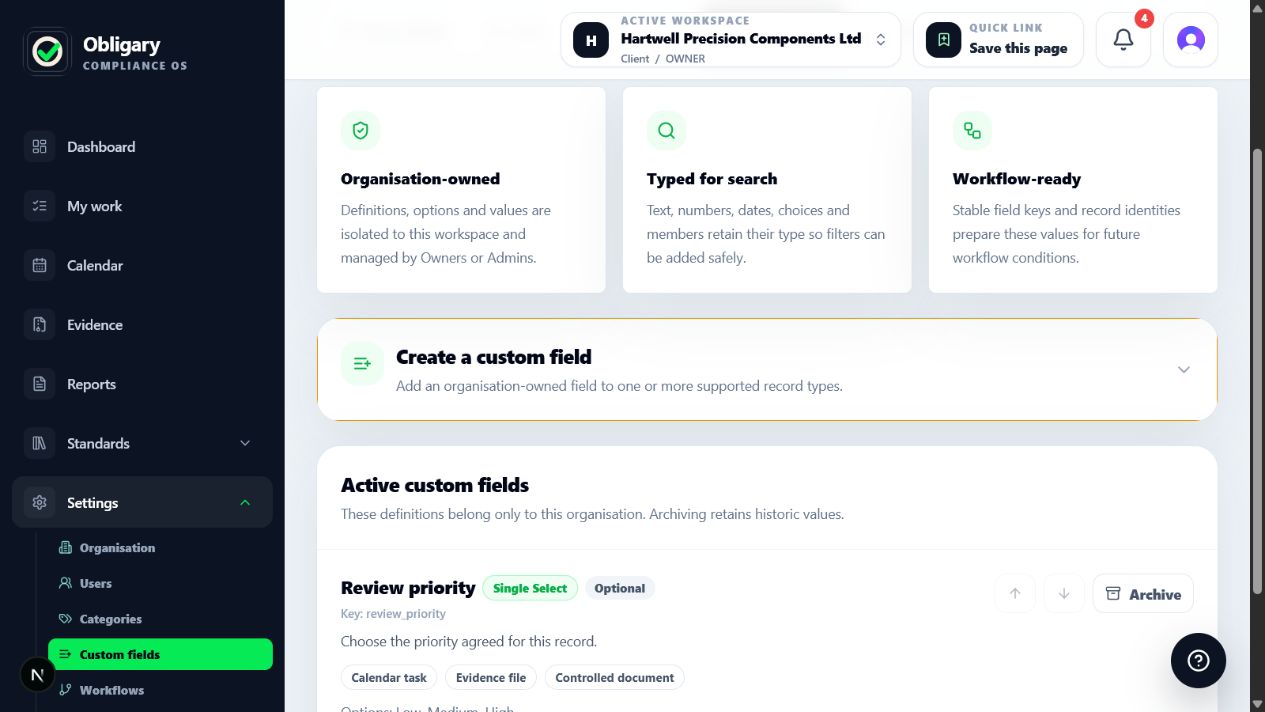
5Chapter 05Review and maintain active fieldsThe active list shows scope, type, enforcement, stored-value count and register behaviour. Existing values remain attached to their records when a definition is archived.
Active custom field card showing type, scope, stored value count and management actionsFull size
Use the definition card to edit behaviour, reorder fields or archive a definition without deleting historic values.
  1. 1

    Check usage before changing anything

    Review the stored-value count and affected scopes. A change that looks small to an administrator may affect many existing records.

  2. 2

    Edit labels and guidance carefully

    Clarifying wording is safe when the underlying meaning remains the same. Create a new field instead if the business meaning has changed.

  3. 3

    Preserve stable options

    Rename an option only when it still represents the same outcome. Archive obsolete options rather than repurposing them for a different meaning.

  4. 4

    Reorder for the user

    Put frequently completed or required fields first so record forms follow the order users naturally work in.

  5. 5

    Archive rather than erase

    Archiving removes the definition from new data entry while retaining historic values and audit context. Confirm that no active process still depends on it first.

6Chapter 06Test from a user's perspectiveA definition is complete only when the person doing the work can understand it without administrator knowledge.
  • Open one new and one existing record for every selected scope.
  • Confirm the label and help text explain the expected answer without referring back to this guide.
  • Try a missing value and an invalid value to confirm Optional, Warning or Required behaviour is appropriate.
  • Save a valid value, reload the record and confirm the value persists.
  • Exercise search, typed filters and optional columns where those behaviours were enabled.
7Chapter 07Common problemsMost setup problems come from scope, availability or choosing a field type that is too broad.
  • A record area is unavailable: enable the required add-on for this organisation, then return to the definition.
  • The field does not appear: confirm the definition includes that exact record type and has not been archived.
  • A value is rejected: check the field type and format, particularly numbers, dates, email addresses and URLs.
  • A choice is missing: edit the definition and confirm the option is active. Historic archived options may still appear on old records.
  • Users cannot configure fields: only Owners and Admins with settings access can manage organisation definitions.

Related guides

Important boundary

Obligary supports organisation and evidence. It does not replace professional judgement.

Use Obligary to manage tasks, owners, reminders, documents, evidence and reports. Your organisation remains responsible for deciding what applies and taking legal, regulatory or certification advice where needed.